
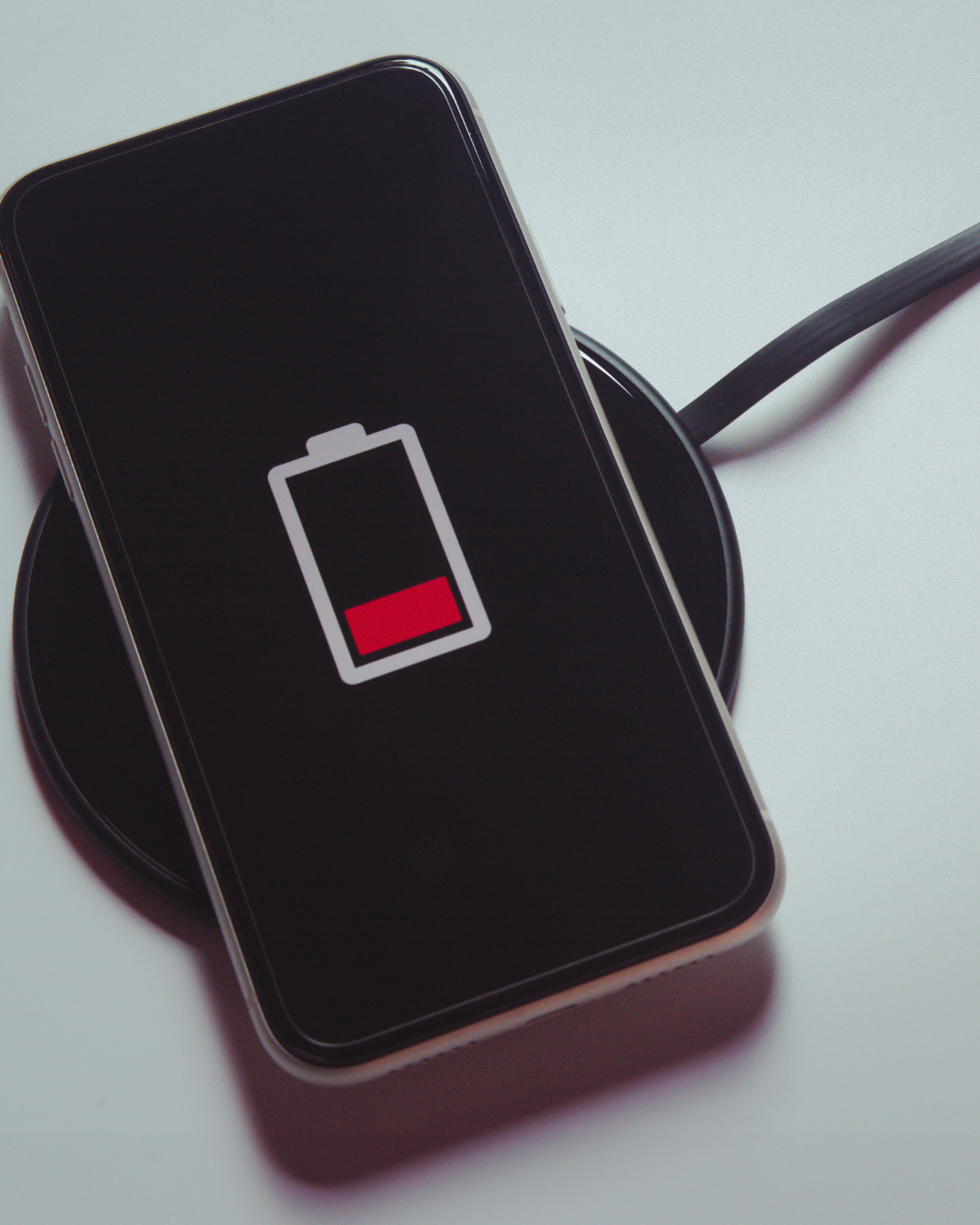
Mobile batteries often drain faster than expected, causing frustration and inconvenience. Understanding how to boost mobile battery life the right way can make a significant difference in daily device usage. The key is to adjust settings, manage app activity, and follow practices that reduce power consumption without harming the battery’s health.
Many users rely on quick fixes that offer temporary relief but don’t address the underlying causes of battery drain. By adopting simple, effective techniques, they can extend battery life sustainably. This article explores practical steps that help maintain battery performance over time.
Mobile battery life depends largely on managing display settings, app activity, and power-saving features. Effective control over brightness, connectivity, and visual settings can significantly reduce battery drain and extend usage time.
Lowering screen brightness is one of the most straightforward ways to conserve smartphone battery. Many devices offer an auto-brightness feature that adjusts brightness based on ambient light, reducing unnecessary energy use when possible.
Setting a shorter screen timeout ensures the phone display turns off quickly when unused. For example, reducing the timeout to 15 or 30 seconds prevents the screen from consuming battery when idle. High brightness combined with long screen-on time is a primary cause of fast battery drain.
For devices with OLED screens, dimming brightness is even more beneficial because darker pixels consume less power. He should avoid excessive brightness, especially in dark environments, to improve battery efficiency.
Battery saver modes help extend battery life by limiting background activity, reducing animations, and throttling CPU performance. These modes activate automatically at preset battery percentages or manually through settings.
Using low power mode can disable non-essential functions such as location services, email fetch, and visual effects. This reduction in system load preserves battery when the charge is low. He should check if the phone supports adaptive battery saver settings to optimise usage throughout the day.
Some manufacturers provide custom battery saver modes that balance performance and battery life. Activating this mode before battery levels get critical improves overall efficiency and prevents premature shutdown.
Apps running in the background consistently drain battery by using data, CPU, and sensors. Closing unused apps or restricting background activity in settings can significantly reduce battery drain.
Connectivity features like Wi-Fi, Bluetooth, and mobile data consume power even when idle. Switching off unused wireless connections or enabling aeroplane mode in low-signal areas conserves battery. He should prioritise Wi-Fi over mobile data where possible, as mobile networks typically use more energy.
Regularly reviewing app permissions and disabling location access for seldom-used apps also limits background battery usage. He can track battery usage per app to identify and restrict the most power-hungry ones.
Dark mode reduces screen power consumption by displaying darker colours, especially on OLED screens, where black pixels are effectively turned off. Enabling dark mode in apps and system-wide settings can lower battery drain during use.
Using dark wallpapers complements dark mode by reducing the amount of light emitted by the screen. Bright or colourful wallpapers increase energy use, so switching to dark wallpapers is a simple but effective battery-saving strategy.
Many users report noticeable improvements in battery life by combining dark mode with dark wallpapers, particularly when the smartphone screen is active for extended periods. It is a practical choice for heavy phone users seeking longer battery runtime.
Maintaining a smartphone battery’s health requires deliberate charging habits. Understanding how lithium-ion (Li-ion) batteries work, avoiding harsh temperature conditions, and selecting the right charger all play a vital role in preserving battery performance and lifespan.
Li-ion batteries degrade based on charge cycles, which count as one full 0% to 100% charge or equivalent partial charges. Battery health typically starts to decline after about 300-500 cycles.
Keeping the battery charged between 20% and 80% reduces stress on the cells, slowing capacity loss. Frequent deep discharges or charging to full 100% constantly can wear the battery faster.
Apps like AccuBattery can monitor cycle count and voltage, giving users insight into real-time battery health and helping avoid overcharging. Avoid leaving a phone plugged in all night, as maintaining a 100% charge under constant current can affect lifespan.
Li-ion batteries perform best between 15°C and 35°C. Charging in extreme heat or cold can substantially degrade battery health. High temperatures accelerate chemical reactions inside the battery, increasing wear and reducing capacity.
Avoid charging the smartphone in direct sunlight or inside a hot car. Cold environments may slow charging or cause temporary capacity loss, though performance usually recovers once normal temperatures return.
If a device becomes noticeably warm while charging, it’s advisable to unplug and let it cool. This helps preserve battery performance and limits damage caused by overheating.
Using a charger that matches the smartphone’s specifications is essential. Low-quality or incompatible chargers may deliver inconsistent voltage or current, negatively impacting battery health.
Fast charging technologies often generate extra heat, which can shorten battery lifespan if used excessively. While occasional fast charging is unlikely to cause significant harm, relying solely on it can increase wear.
Manufacturers typically recommend charging at standard speeds for daily use and reserving fast charging for urgent needs. Using original or certified chargers reduces the risk of damage and supports consistent battery performance over time.
Optimising battery life requires more than basic adjustments. Precise monitoring and targeted settings help maintain battery health and improve performance over time. This involves tracking power consumption, managing connectivity options, and keeping software efficient.
He can track which apps consume the most battery by accessing the device’s battery usage settings. This shows background and foreground app activity, enabling identification of power-hungry processes.
Using tools like AccuBattery provides detailed insights into battery health and charging habits. It measures actual battery capacity and estimates wear to prevent overcharging and maintain long-term performance.
Regularly reviewing battery health indicators ensures that the device battery does not degrade unnoticed. This proactive approach allows timely intervention, such as reducing app usage or seeking a battery replacement.
Enabling aeroplane mode disables all wireless communications: cellular, Wi-Fi, Bluetooth, and GPS. This instantly reduces battery drain, particularly in areas with poor signal, where the device expends extra power searching for networks.
He should disable Bluetooth, location services, and Wi-Fi individually when not in use instead of keeping them on continuously. Background apps frequently use these features, silently draining the battery.
Using aeroplane mode during periods of inactivity or low connectivity dramatically conserves battery. This setting is especially useful when travelling or in movie theatres, where connectivity is unnecessary.
Software updates often include optimisations for power management. He should install the latest system patches and app versions promptly to benefit from improved energy efficiency.
New app versions tend to fix bugs causing excessive battery usage. Ignoring updates risks running outdated code that overuses CPU or network resources in the background.
Most operating systems provide automatic update options. Enabling these ensures the device maintains the best possible battery performance without manual intervention.